


Light
Skies and studios
The light all around your scene sets its whole mood. Choose a photo studio, a real daylight sky, a photo of a real place or a plain color.
What a sky is
In Auddomate, the sky is everything around your scene that gives off light, in every direction. It's what lights your model, what it reflects, and, unless you hide it, what you see behind it. A good sky is the quickest way to a beautiful render.
Choose one in the Light tab, under Source. There are five.
Studio
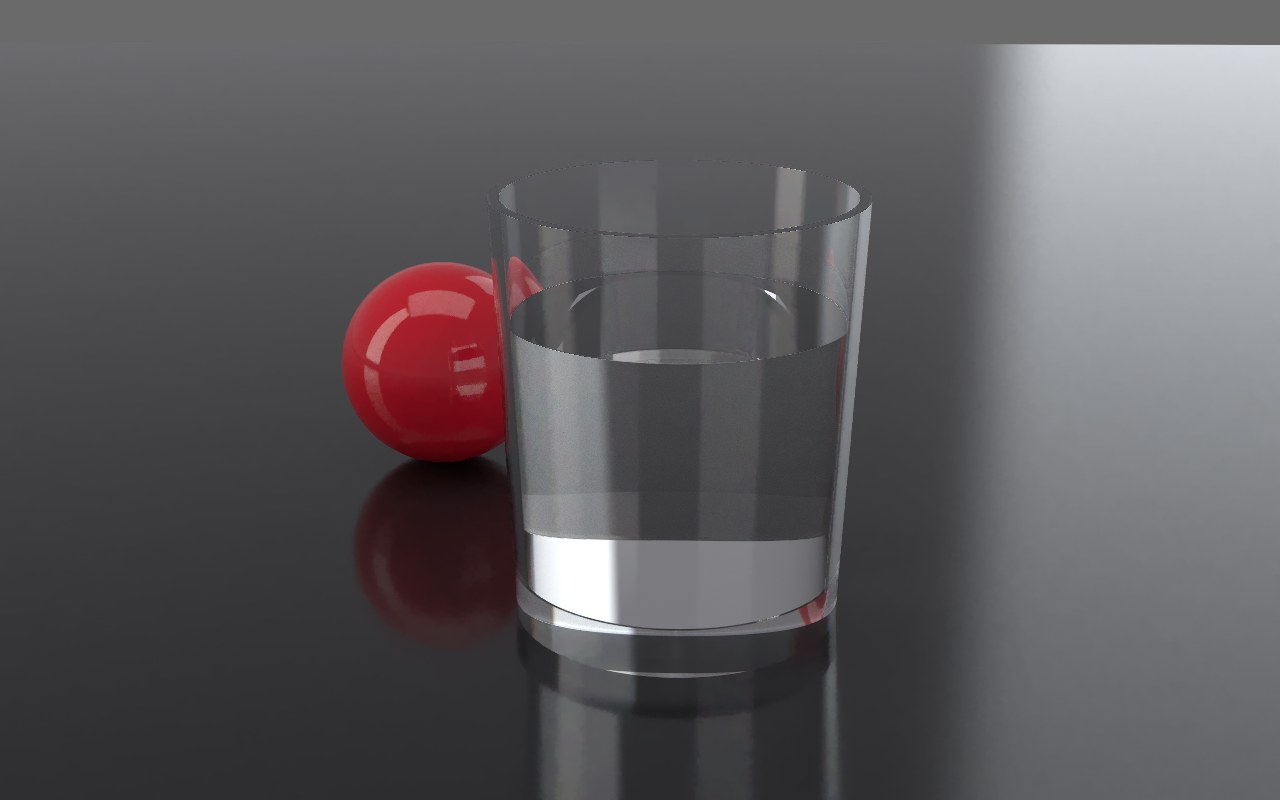
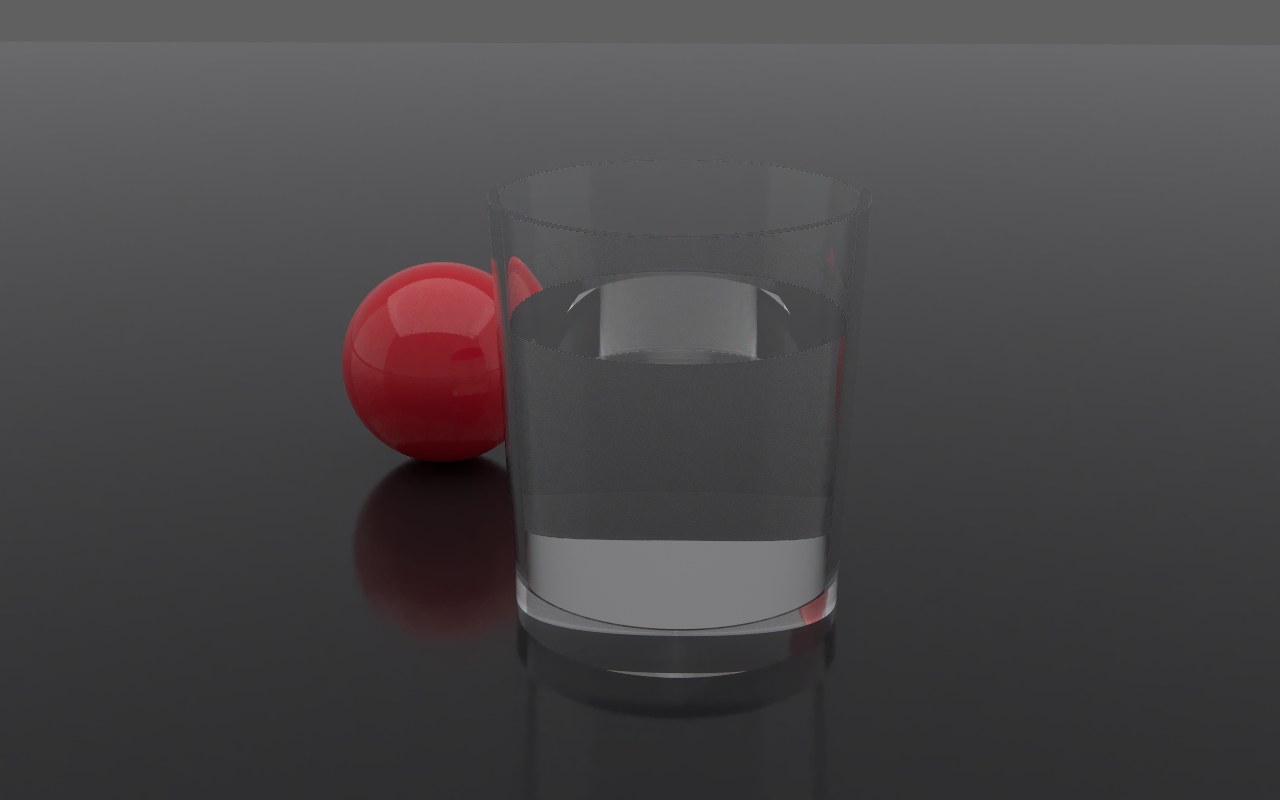
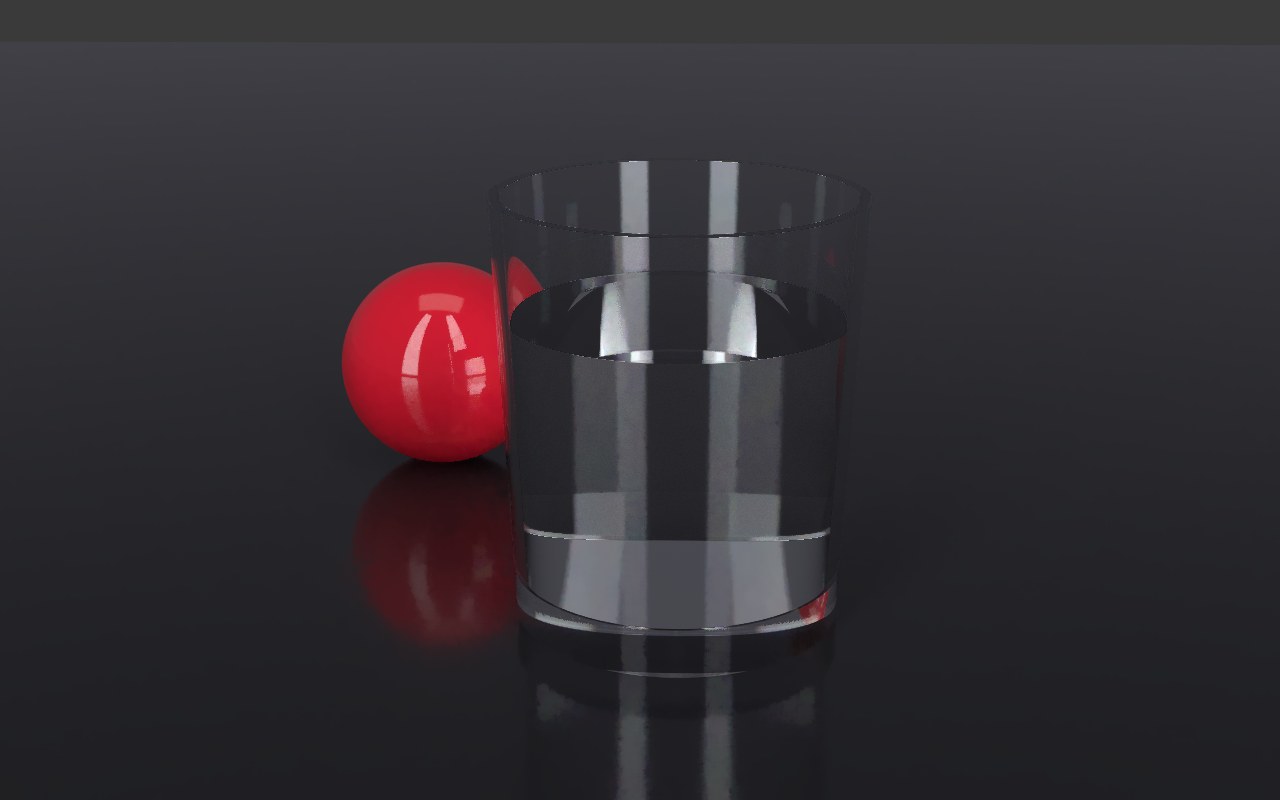
A photo studio made by Auddomate: softboxes, light strips and a soft backdrop around your model. Pick a Look:
- Studio has a warm key light, a cool fill, an overhead box and a rim light. A great all-rounder.
- Soft is a big overhead box with wrap-around fills, for gentle, even product shots.
- Rim is dark, with two tall strips behind, for dramatic reveals that outline glass and metal.
Studio is the best choice for products, glass and metal, because their reflections pick up the shapes of the softboxes. Imported models open in it.
Physical
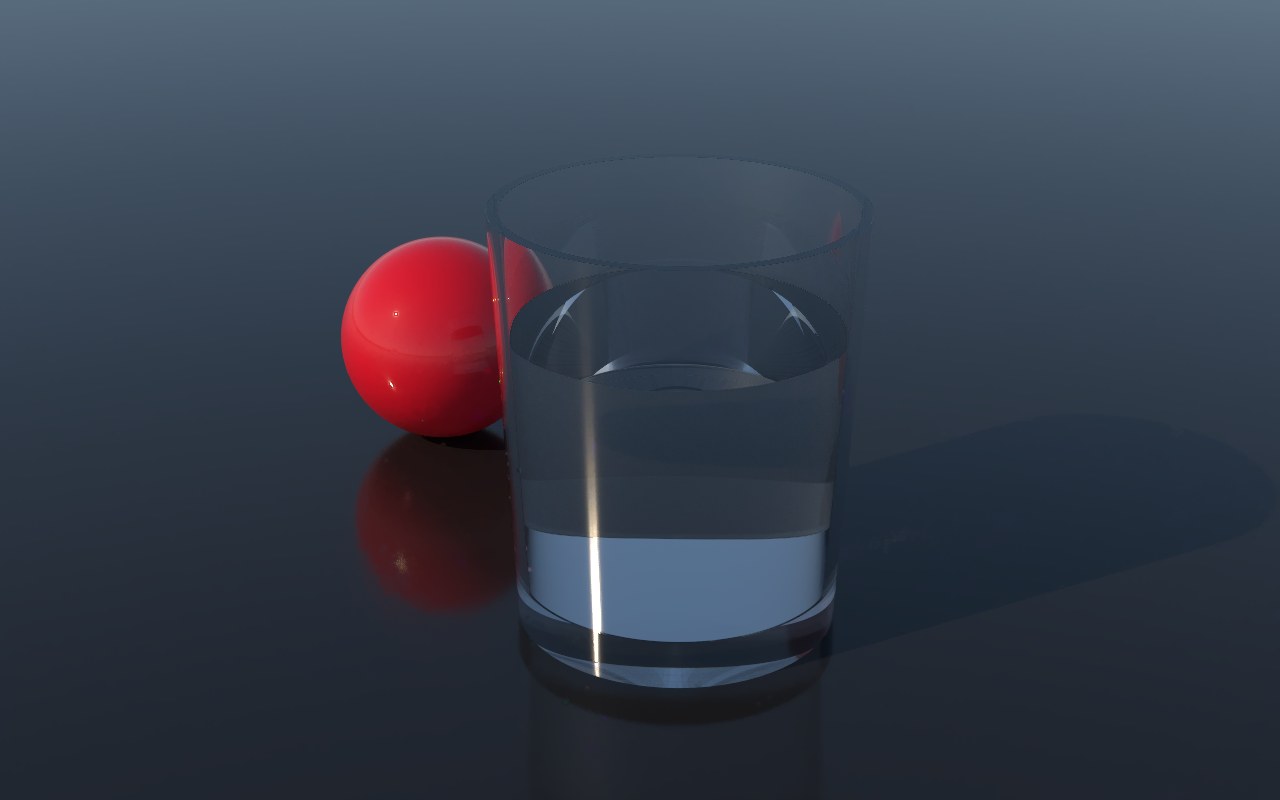
A real daylight sky and sun, worked out from how sunlight scatters through the atmosphere. It's the same sky model that pbrt-v4 uses, and the sun's brightness stays exact at every setting.
- Sun height sets the time of day: low for long, warm shadows near sunrise or sunset, high for a crisp, blue noon.
- Sun direction turns the sun around your scene.
- Haze goes from crystal-clear mountain air to a soft, hazy summer day.
- Ground sets how much light the ground bounces back up.
HDRI
An HDRI is a 360° photo of a real place, captured with its full range of brightness, from deep shadow to the blazing sun. Lighting a scene with one makes it look as if it's really there.
- Press Choose file and pick an
.hdror.exrpanorama, or drop one onto the render. - Try Dusk HDRI for a built-in example.
There are thousands of free HDRIs online; look for ones described as equirectangular or latitude–longitude.
Color
One even color all round, like a studio dome or an infinity cove. Pick from the swatches: White, Light grey, Mid grey, Dark grey, Black, Warm or Cool.
Color is ideal for clean catalogue shots, and Dark grey is the perfect partner for lights from your file: it adds a gentle fill without washing out your own lighting.
Scene
The sky a scene was built with. For the showcase and test scenes, this is the light they were designed under.
Rotation and intensity
Every sky can be adjusted:
- Rotation turns the sky around your scene, moving all its lights at once. With a studio, it's the quickest way to move a highlight across a bottle.
- Intensity makes the whole sky brighter or dimmer, from 0 to 4×.
Tint the light
Tint colors all the light that comes from the sky, like a colored gel over a lamp. Pick a swatch under Light›Tint:
- Golden and Warm for late-afternoon light.
- Rose for a soft, flattering glow.
- Mint and Cool for clean, clinical light.
- Blue hour for the deep blue just after sunset.
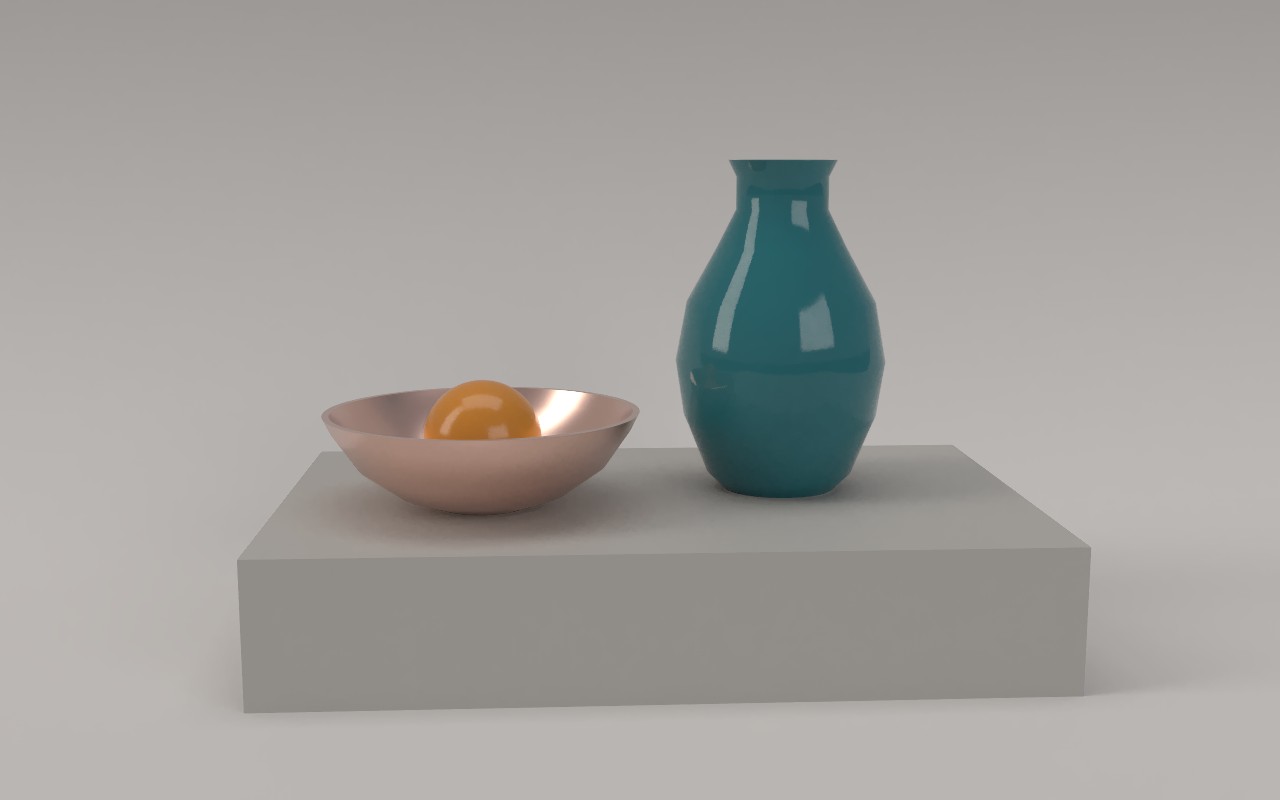
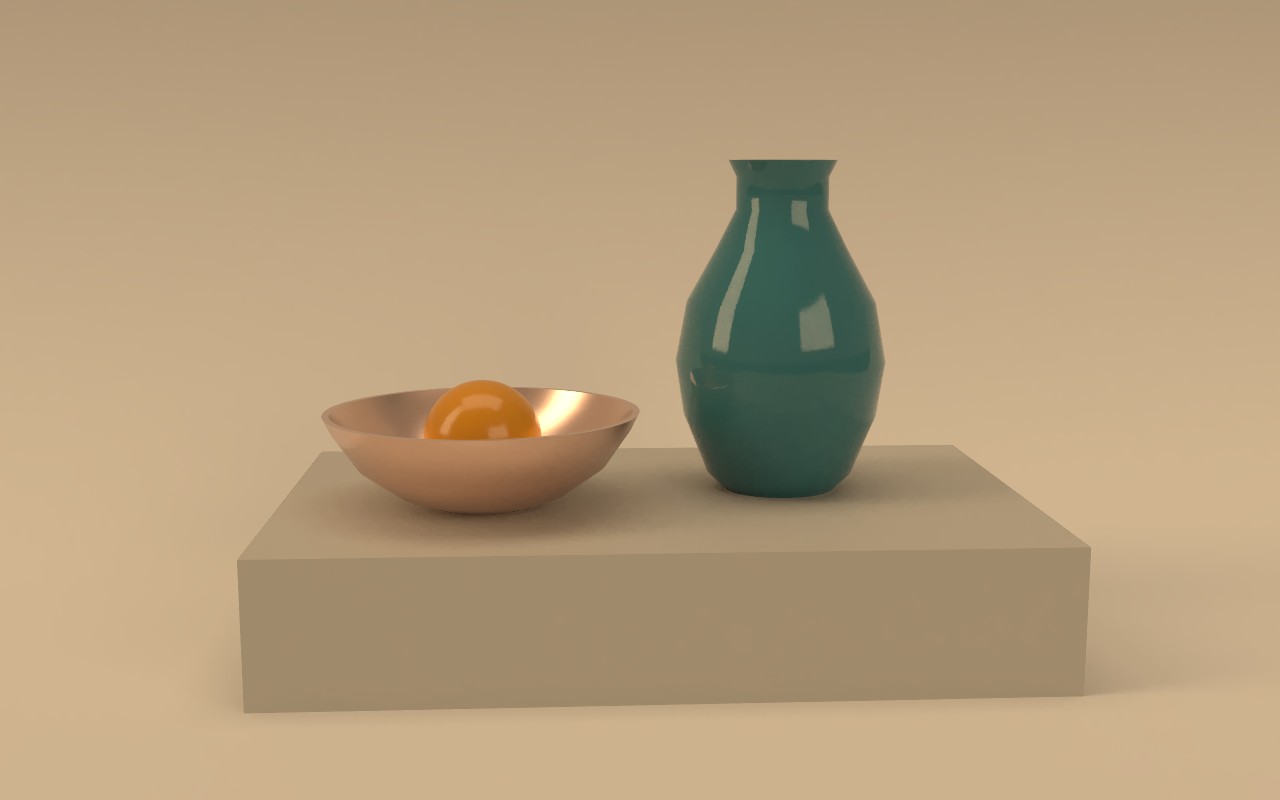
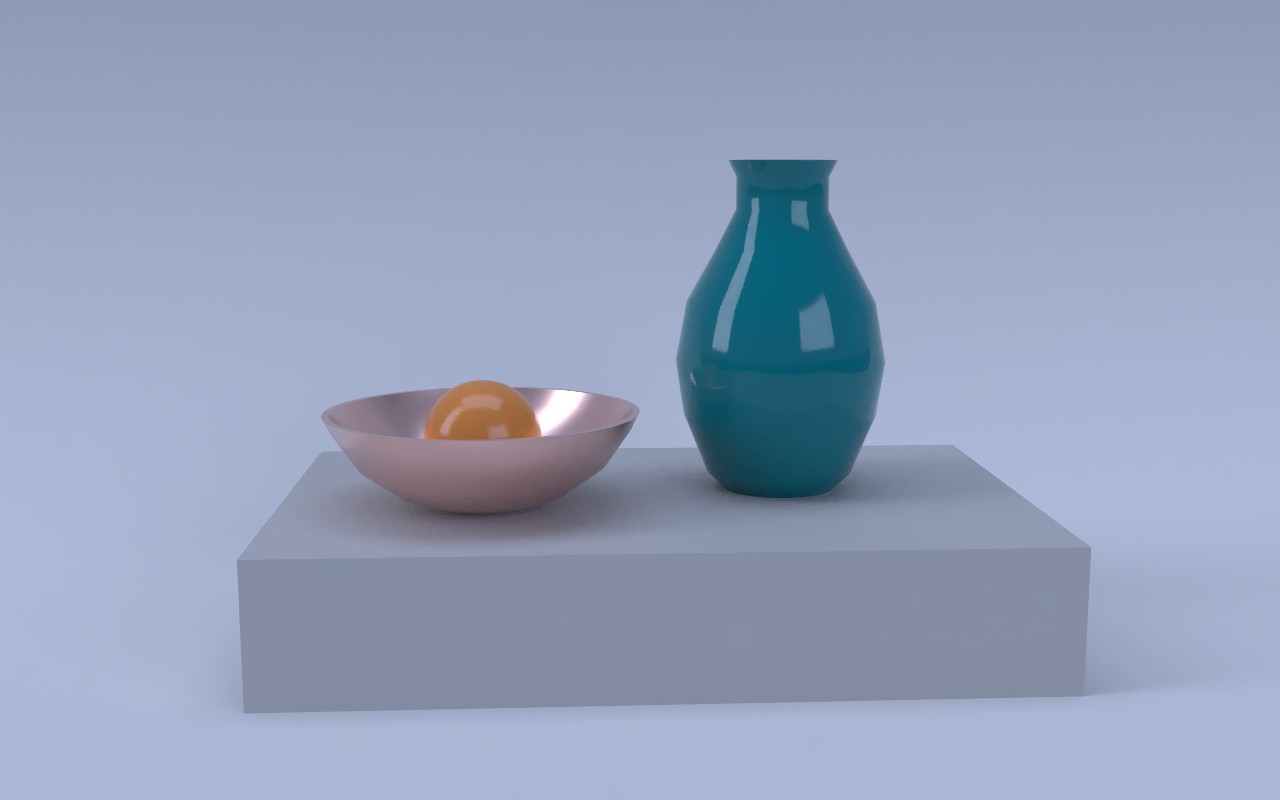
Tint strength sets how much of the color you get, from barely there to full. The sky keeps its brightness, so you don't have to fix your exposure afterwards.
Tint works on the Studio, Physical, HDRI and Scene skies. Every wavelength of the sky's light is filtered, so colored objects react to the tint the way they would under real colored light: a blue tint makes an orange look duller and a teal vase look brighter. Color skies don't need a tint: just pick the color you want.
Hide the sky behind your model
Turn off Show sky in render to put your model on a plain background. The sky still lights the scene and still shows in reflections: only the backdrop changes, to the Background color you pick.
For a fully transparent background, use Transparent background when you save. See Saving your renders.