

Camera
Camera and lens
Frame your shot with the right lens, use the cameras saved in your file, and turn or tilt for the perfect angle.
Field of view
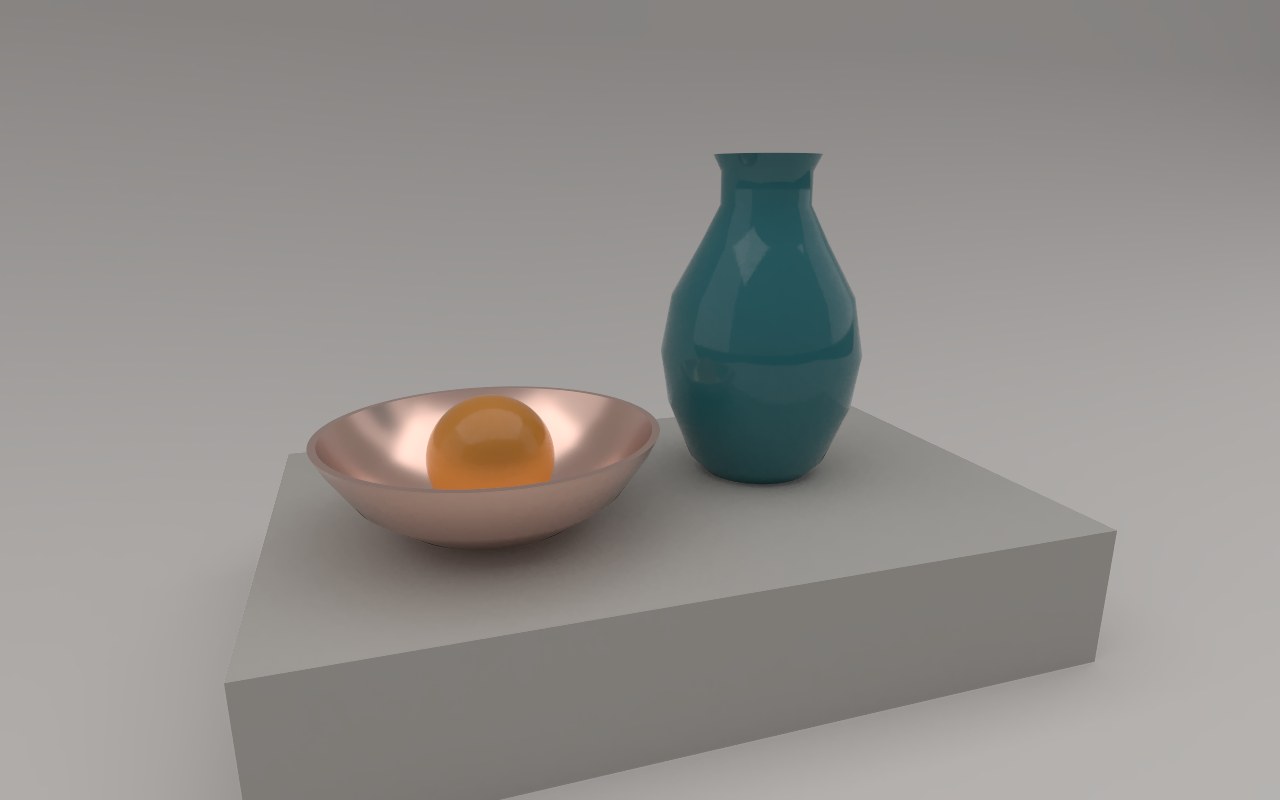
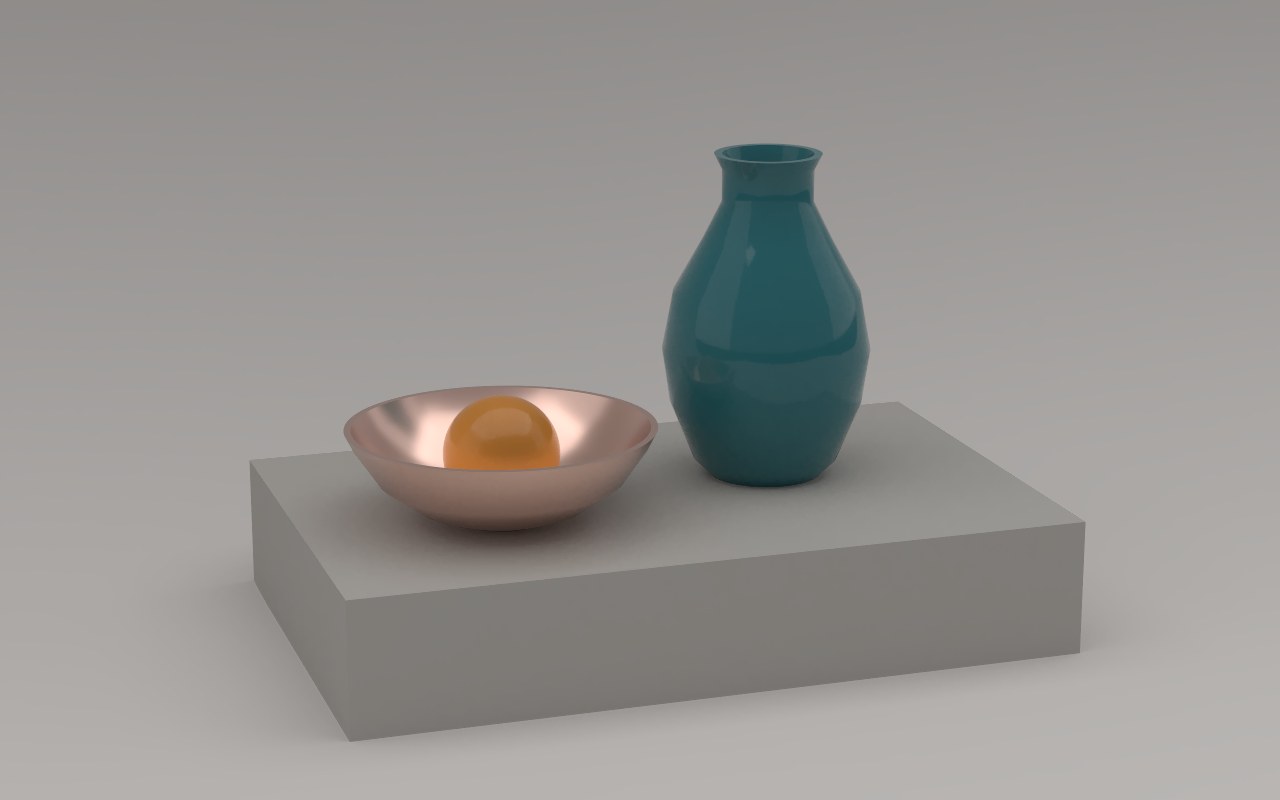
The field of view decides how much of the scene fits in the picture, just like choosing a lens. Find it under Camera›Field of view, from 10° to 100°. Next to it, Auddomate shows the matching lens on a full-frame camera, in millimetres.
| Lens | Field of view | Good for |
|---|---|---|
| 24 mm | About 53° | Interiors, dramatic close-ups, big scenes |
| 35 mm | About 38° | Natural, everyday views |
| 50 mm | About 27° | Close to how your eye sees |
| 85 mm | About 16° | Products and portraits, with little distortion |
Cameras from your file
If your glTF or GLB file contains cameras, the scene opens on the first one, with the same position, aim and lens you set in your 3D app. Every camera in the file is listed under Camera›Cameras from the file, and in the ⌘K command menu.
Reset view, or F, always takes you back to your file's first camera. For animated cameras, see Animation.
Views, orbit and zoom
The Camera tab also has buttons for clean, repeatable framing:
- View swings the camera to Front, ¾, Left, Right, Back or Top, keeping your zoom.
- Orbit turns 45° left or right, or tilts 15° up or down.
- Zoom steps in and out.
See Moving around for moving freely with the mouse.
Turn and tilt
- Turn the model spins your model and its floor under the lights, from −180° to 180°. The camera and the sky stay put, so the light rakes across the model differently at every angle.
- Tilt rolls the whole frame up to 45° either way, for an angled, dynamic shot.
Both also sit on the slim bar under the render on larger screens.
Aperture, focus and exposure
The lens also controls what's sharp and how bright the picture is:
- Aperture and Focus give you depth of field, the soft background of a real camera. See Depth of field.
- Exposure brightens or darkens the whole picture in stops. See Exposure.