


Animation
Animation and turntables
Play back the animation from your 3D app, or spin any still model on a turntable, then render it as a video.
The Animation tab
Every scene has an Animation tab in the panel. What it does depends on your model:
- If your file is animated, it plays your animation, exactly as you made it in your 3D app.
- If your model is still, it spins it a full 360° on a turntable, ready to render as a seamless loop.
Play, step and scrub
- Play plays your animation in a loop at its frame rate. The preview renders quickly at a lower resolution and is denoised on every frame, so you can judge timing and camera moves. Pause, and it sharpens up to full quality.
- The arrows on either side of Play step one frame back or forward.
- Drag the time slider to scrub to any moment.
Above the controls, Auddomate shows the time, the frame number and the total number of frames.
Frame rate
Choose 24, 25, 30 or 60 frames per second:
- 24 is the classic film rate.
- 25 is the broadcast rate across Europe and much of the world.
- 30 is the common rate for web video and social media.
- 60 is very smooth, for fast action, screens and games.
The frame rate decides how many frames are rendered, and how motion blur looks.
Turntables
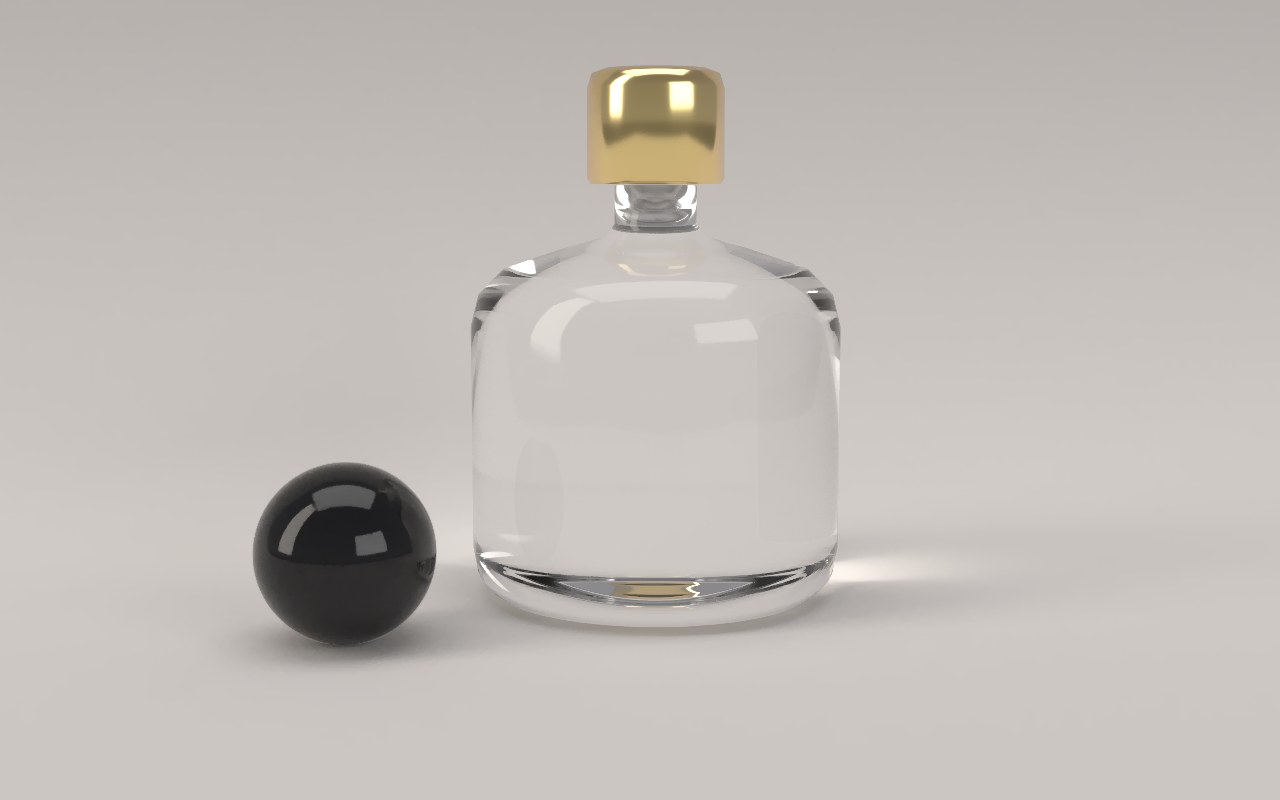
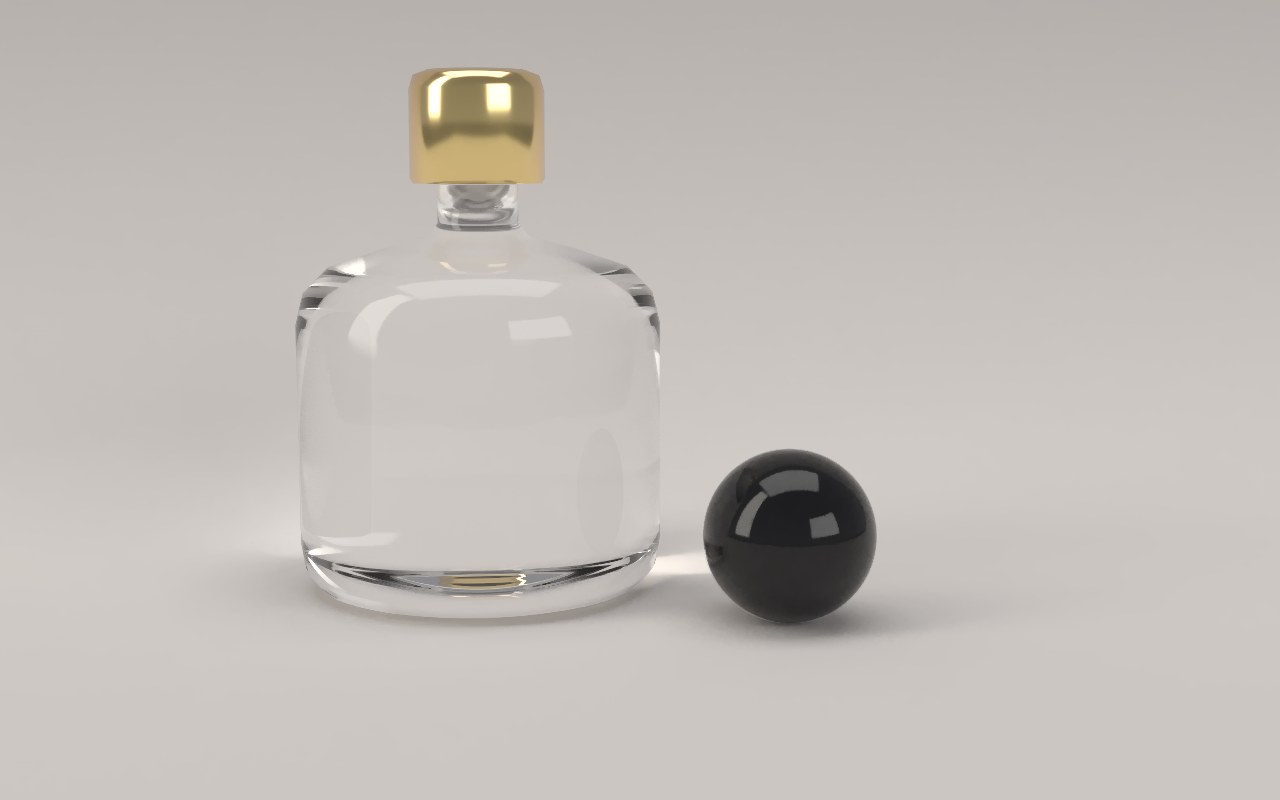
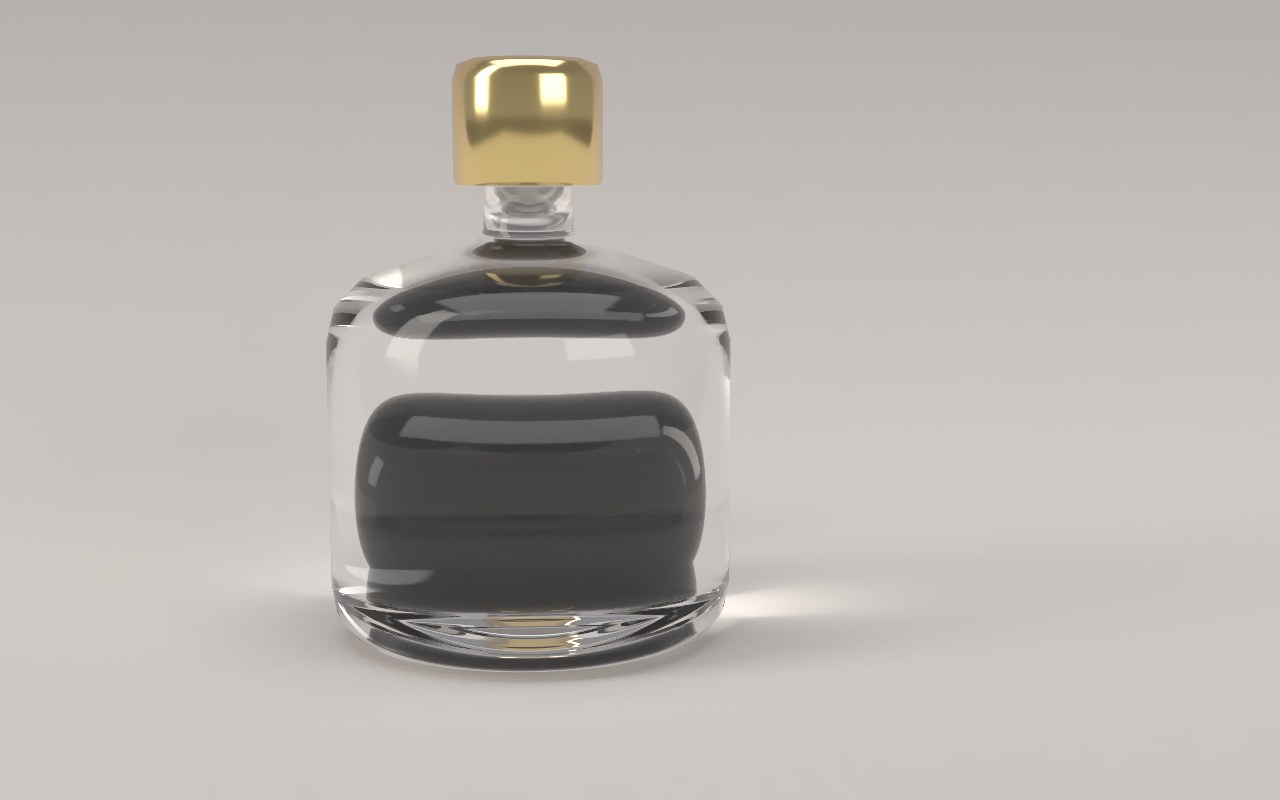
On a still model, Play turns it a full 360° on its spot, like a product on a turntable. The backdrop, floor and lights stay still while the model turns, so reflections, refractions and shadows move across it as they would under real studio lights.
One turn takes sets the length of a full turn: 4, 6, 8 or 12 seconds. The last frame leads straight into the first, so a rendered turntable loops perfectly.
Animation from your 3D app
glTF and GLB files bring their animation with them:
- Objects that move, turn and scale, including whole hierarchies of nulls and parented parts.
- Cameras that move, with their lens.
- Rigs: characters and objects bent by bones, with every point following the bones it's weighted to.
- Morphs: shapes animated with morph targets, called pose morphs in Cinema 4D and shape keys in Blender.
- Lights that move, or are parented to moving objects.
Keyframes in linear, stepped and smooth curves all come across. MoGraph, dynamics and other simulations come across once baked to keyframes. See the guides for Cinema 4D and Blender.
Look through a camera
If your animated file has cameras, choose one under Look through, and the view follows it as it moves. Choose Free camera to move around the scene yourself while it plays.
Next
When it looks right, render it as a video or a sequence of frames.