

Get started
Your first render
Open the studio, watch a picture build up out of light, and save it. Nothing to install and nothing to set up first.
Open the studio
Go to auddomate.com/studio in Chrome or Edge on a computer with a graphics card made in the last few years. That's all Auddomate needs: it runs entirely in your browser, on your own graphics card, and your models never leave your computer.
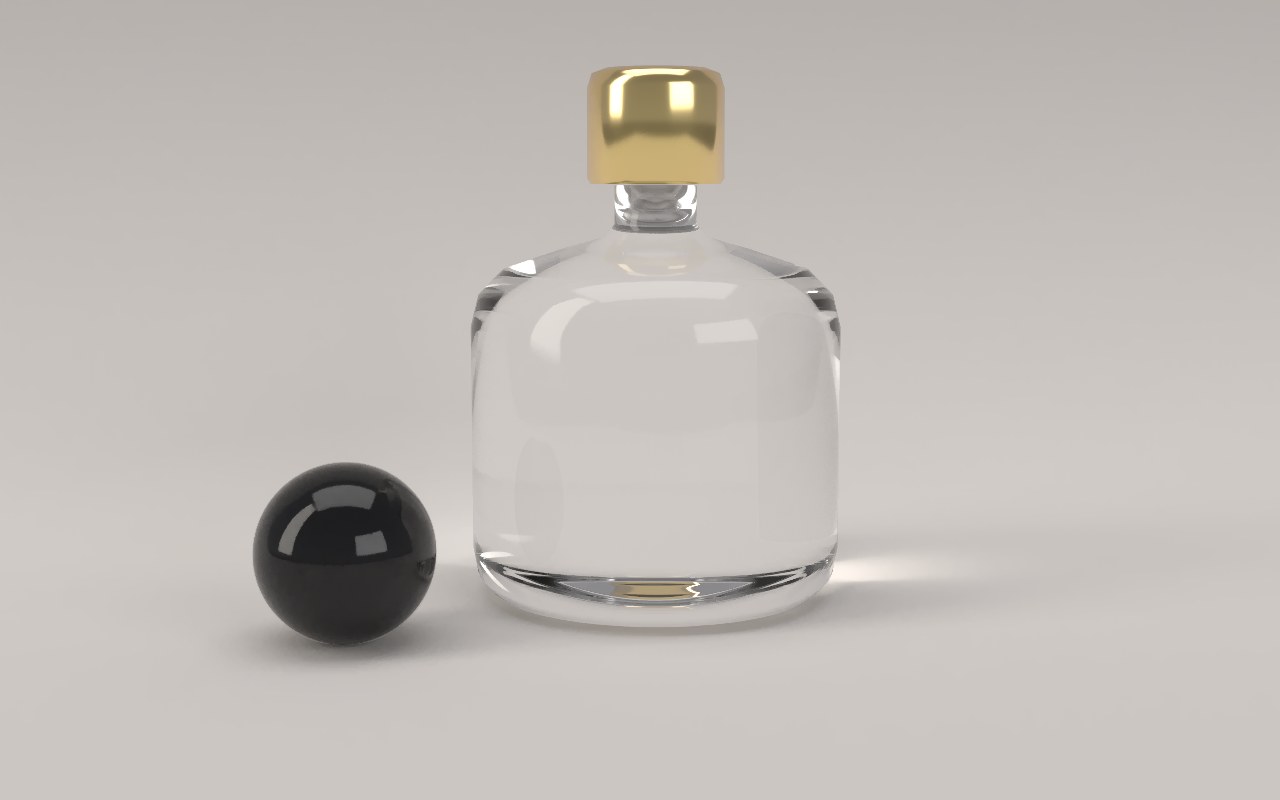
The studio opens on Perfume, one of three scenes made to show what Auddomate can do. Within a second or two you'll see the bottle appear, a little grainy at first, then clearer and clearer.
Why it starts grainy
Auddomate makes pictures the way a camera does: it follows light. For every pixel it traces rays of light bouncing around the scene, off the backdrop, through the glass, off the gold, until they reach a light. Each round of rays is called a sample.
One sample on its own gives a speckled, noisy picture. Every new sample is averaged in, so the noise melts away and the picture settles. That's why you'll see it sharpen over a few seconds, and why the slow, careful light effects, like light bending through glass, appear last.
Watch the progress
The bar along the top of the render tells you how the render is going:
- Rendering, Finished or Paused says what it's doing right now.
- The dots fill up as the grain clears, and turn green when the picture is clean.
- The time shows how long it has run and roughly how long remains.
Along the bottom of the render, the readouts show how fast your graphics card is working, in millions of samples per second, and how many rounds of light, or samples, each pixel has received. On wide screens they also show the resolution and the size of your model.
By default, a render stops by itself as soon as the picture is clean: Auddomate watches the grain and knows when to stop. You can change that in the Render tab, under Stop when clean, or press Pause in the top right to stop early.
Try the other scenes
Click the scene's name at the top left of the render, then pick Still life, Water glass or Rum bottle. Each one shows off something different: glazed ceramic, brushed copper and fruit skin in Still life; glass and water bending light, and bright edges splitting into color, in Water glass; and in Rum bottle, deep amber rum glowing in low evening sun and throwing golden caustics across the table.
Every time you change something that affects the light, the render starts again from the first sample. That's normal: Auddomate never mixes old light with new.
Save your picture
When you're happy with it, press Save in the top right and pick a format:
- Choose JPEG for something to share, or PNG if you want the best quality.
- The file downloads straight away at full resolution, with a name like
auddomate-perfume-1024spp-20261020-1430.png. - It's also kept in your Render history, in the same menu, so you can download it again later.
There's a lot more in the Save menu, from transparent backgrounds to files for compositing. See Saving your renders when you're ready.
Next steps
You've made your first render. Next, learn to move around a scene, then bring in a model of your own.